WiseAI Realtor — Operator Guide (illustrated)
This is the "how do I actually run this?" guide. It walks each screen in plain language: what it is for, the day-to-day workflow, and (in Train the Becketts callouts) what to say when training a real customer. Every screen also has a one-line help hint with an Ask Aria button, and a Help (?) button in the top bar — Aria explains any screen and points you to the exact control (she guides, she never changes a setting or sends a message for you).
Screenshots in this guide are live captures of the TeamMoelker Realty
showcase account (/realtor/app, captured 2026-07-03). They live in
operator-guide-assets/ next to this file. There is
also a double-clickable, print-friendly version at
operator-guide.html — open that one to sit next to Terry
and Sheri.
Where you work: the dashboard lives at /realtor/app. The left rail is your
navigation; the top bar shows the current screen, your setup progress, the
Aria · Autopilot/Co-pilot status, the Help button, notifications, and a
+ New quick-create. The left-nav order is: Home · Leads · Inbox · Contacts
· Pipeline · Listings · QR Campaigns · Website · Content Studio · Calendar & Tasks
· Analytics · Reviews · AI Agents · Integrations · Settings.
The golden thread — how a lead becomes a client: Lead comes in → it appears in Leads and its conversation in the Inbox → you read Aria's summary and respond (take over when you want) → the person becomes a Contact with a full record → you track the deal through the Pipeline → Analytics tells you which channel actually created it.
Home — Command Center · /realtor/app
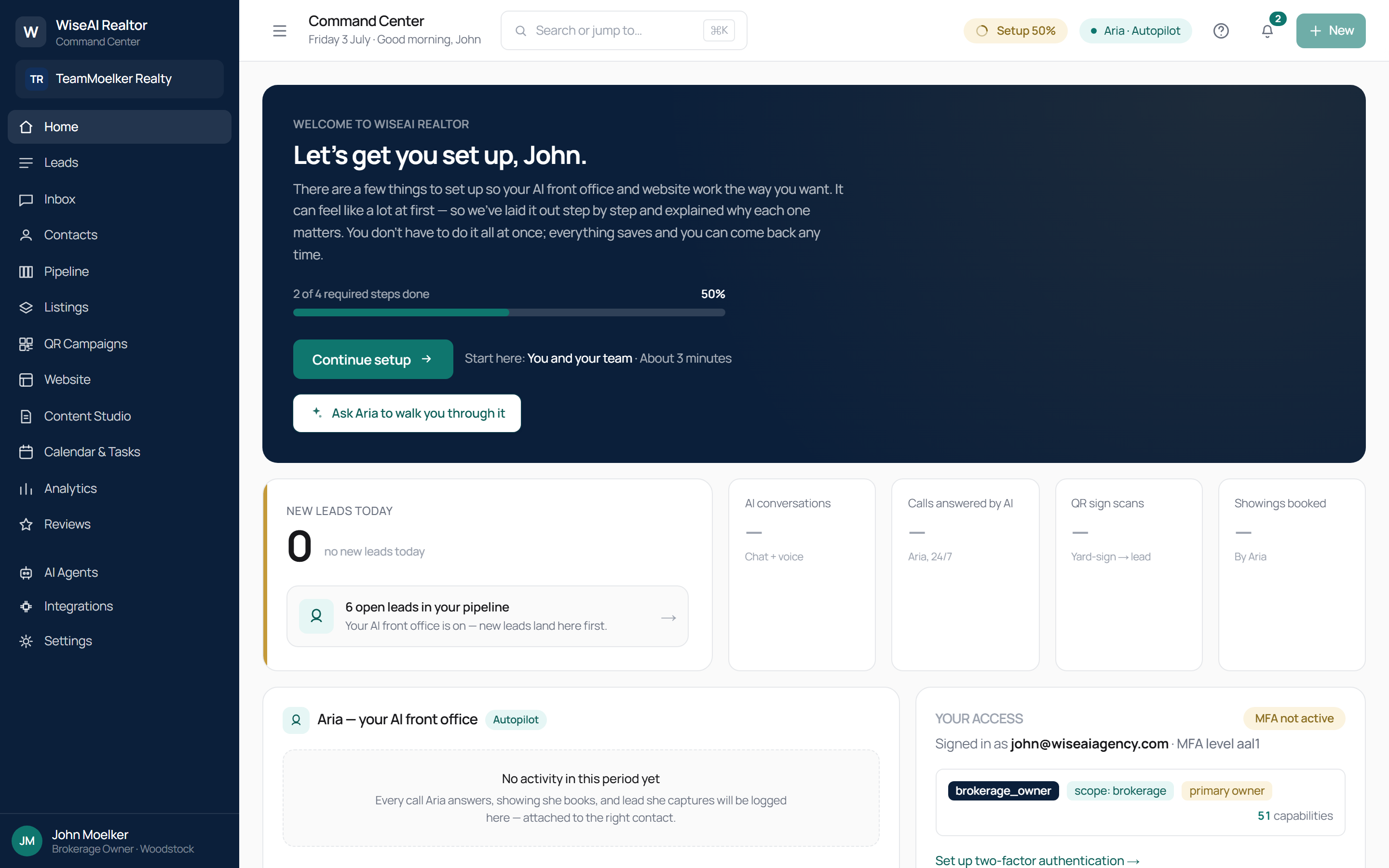
What it is: your morning glance. A setup progress banner (until you finish onboarding), a strip of key numbers — new leads today, AI conversations, calls answered by AI, QR sign scans, showings booked — plus a pipeline snapshot and a "needs a human" pointer.
Day to day: open it first thing. Numbers show "—" until your AI front office (voice/chat) is live, so an unconnected account reads honestly instead of faking activity. Click through to the open-leads pointer to jump straight into work.
Train the Becketts: start every day here. "0 new leads today" is the truth, not a bug — once Aria is answering calls and chats, these tiles fill in on their own.
Leads — /realtor/app/leads
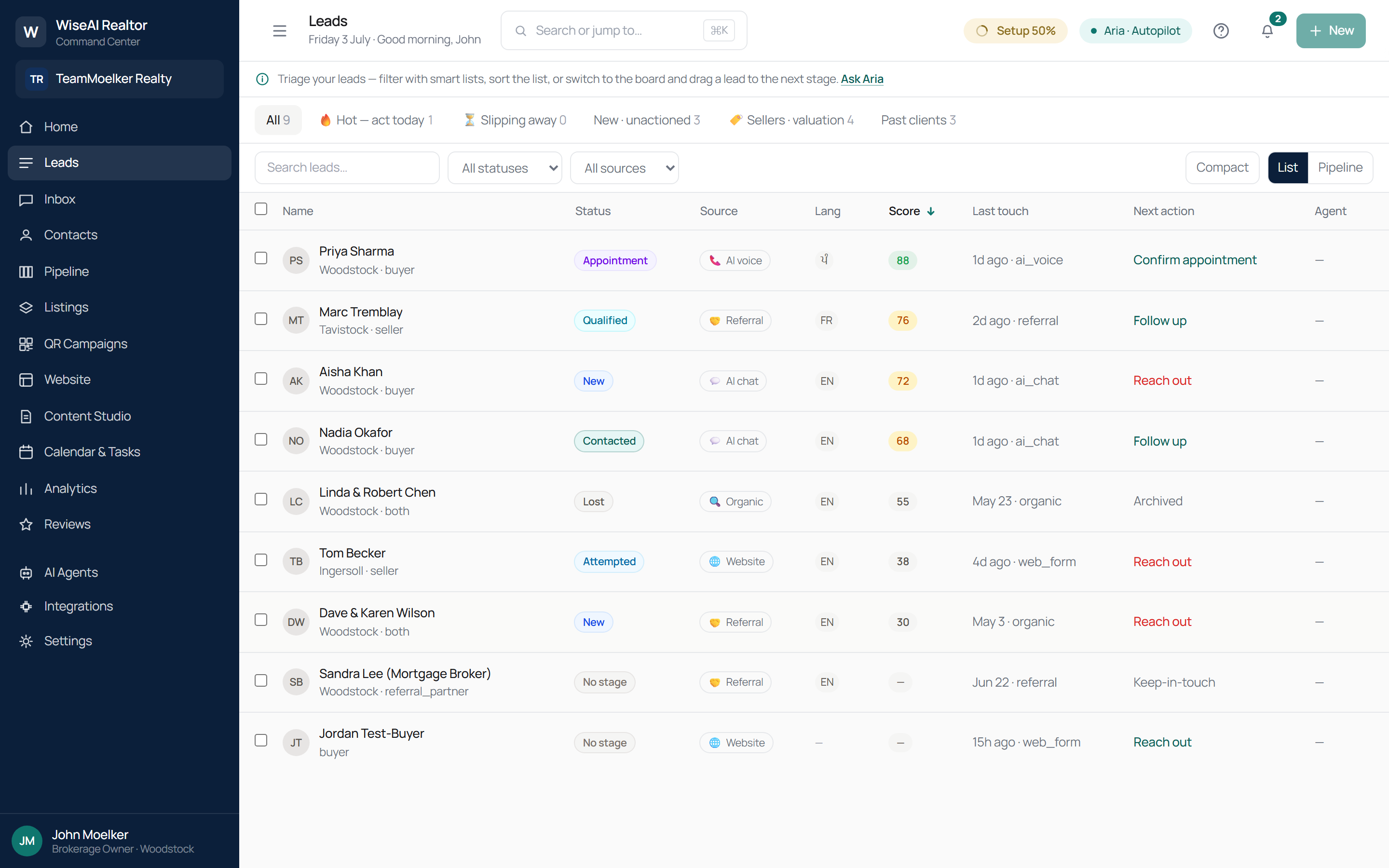
What it is: the triage workspace for everyone new who reaches you. A row per lead with Status, Source (AI voice / AI chat / Referral / Website / Organic), Language, Score, Last touch, Next action, and assigned Agent.
Day to day:
- Use the smart lists across the top — All, Hot — act today, Slipping away, New · unactioned, Sellers · valuation, Past clients — to focus.
- Filter by status or source, or search; switch between List and Pipeline views and toggle Compact.
- Click a lead to open its detail and act on it. An empty list honestly says so — nothing is fabricated.
Train the Becketts: the Lang column (EN/FR/PA…) is the multilingual story made concrete — Aria captured that language on first contact. The Score and Next action columns are Aria triaging for you.
Inbox — /realtor/app/inbox
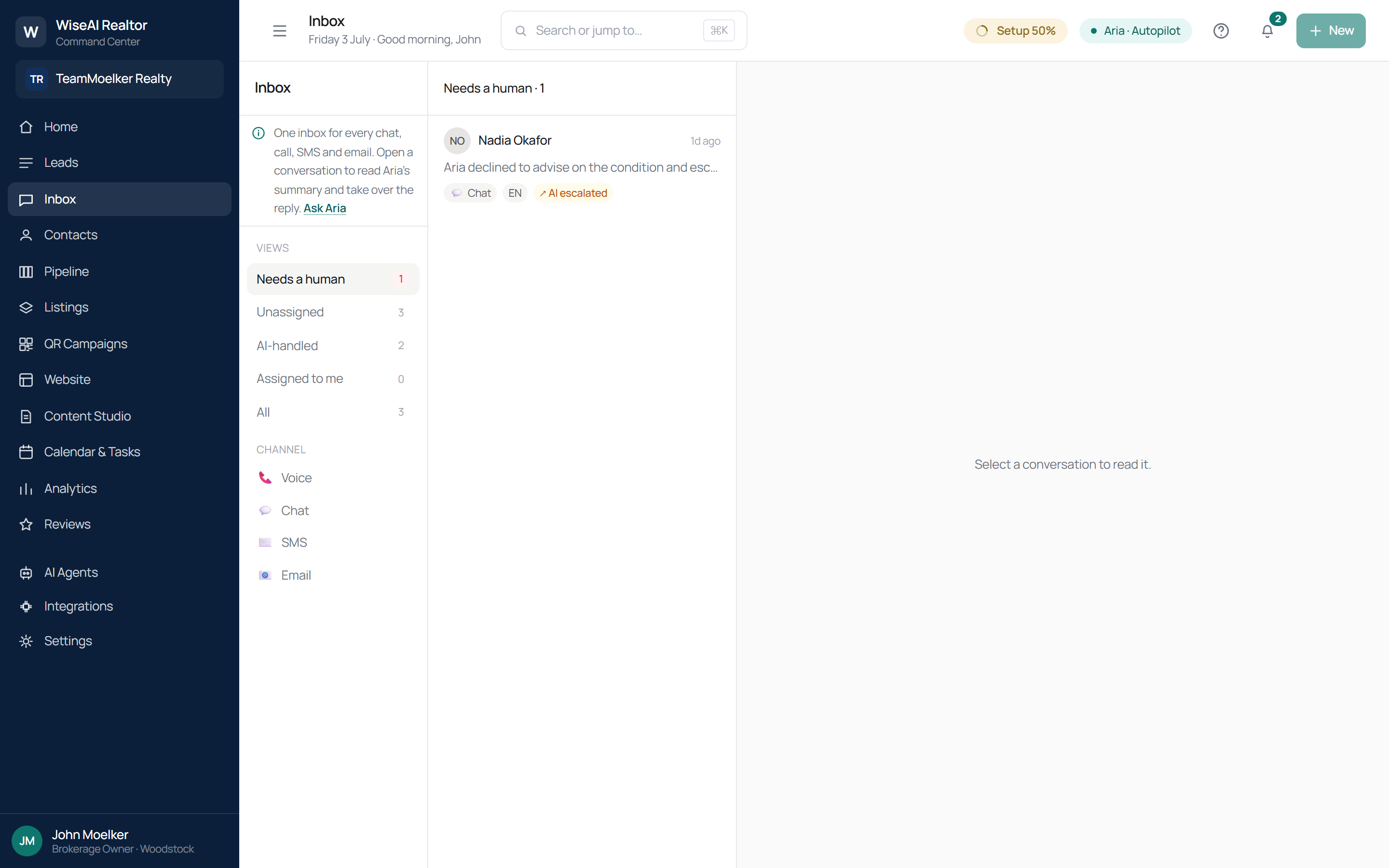
What it is: one place for every conversation — website chat, phone calls, SMS and email — no matter the channel or language.
Day to day:
- Pick a view: Needs a human, Unassigned, AI-handled, Assigned to me, or All; or filter by channel (Voice · Chat · SMS · Email).
- Open a conversation to read Aria's summary and the full thread.
- Take over when you want to reply yourself — that pauses Aria for that contact; you type and press send (nothing is ever auto-sent). Resume Aria after.
Co-pilot vs autopilot: on co-pilot Aria drafts a reply for you to approve; on autopilot she answers on her own. Set the mode per channel on the AI Agents screen — and you can always take over a single conversation regardless.
Train the Becketts: the sample "Needs a human" item shows Aria declining to advise on a home's condition and escalating — that is the AI-bridge principle working: she never pretends to be the agent, she hands off.
Contacts — /realtor/app/contacts
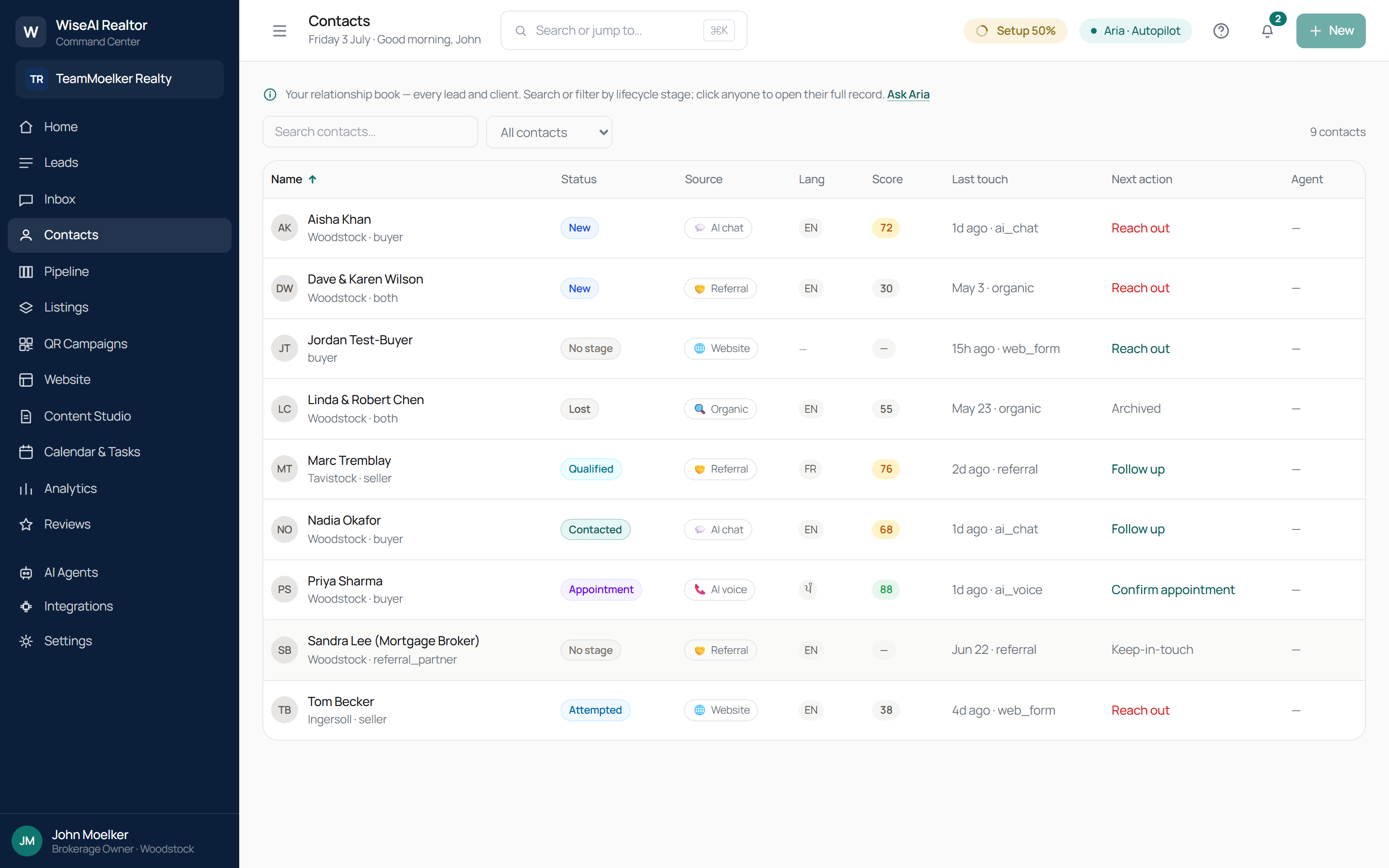
What it is: your lasting relationship book. Every person you've talked to, each with a full record.
Day to day: search by name, email or phone, or filter by lifecycle stage (Lead, Active client, Under contract, Past client, Sphere). Click anyone to open their full history and details.
Pipeline — /realtor/app/pipeline
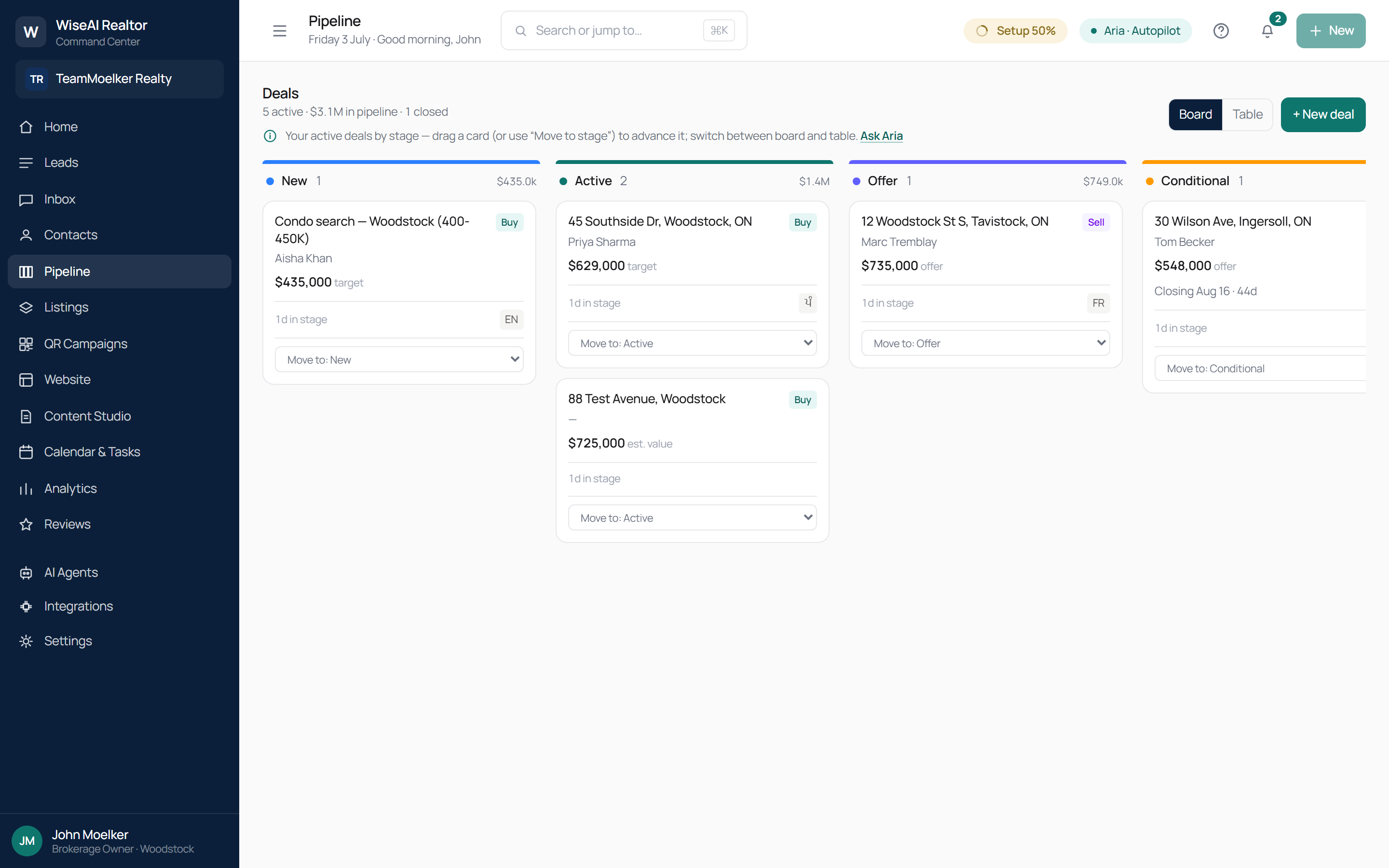
What it is: your active deals arranged by stage (a Kanban board) — New, Active, Offer, Conditional, Firm — with a header summary (e.g. "5 active · $3.1M in pipeline · 1 closed").
Day to day:
- Drag a deal card to the next stage, or use the card's Move to… dropdown.
- Switch between Board and Table views.
- Use + New deal to add one (if your role can edit).
Note: we show expected/target value and volume — never commission or GCI. That is deliberate.
Train the Becketts: each card carries the buyer/seller side, the target or offer price, days-in-stage, and language — enough to run the deal without opening anything else.
Listings — /realtor/app/listings
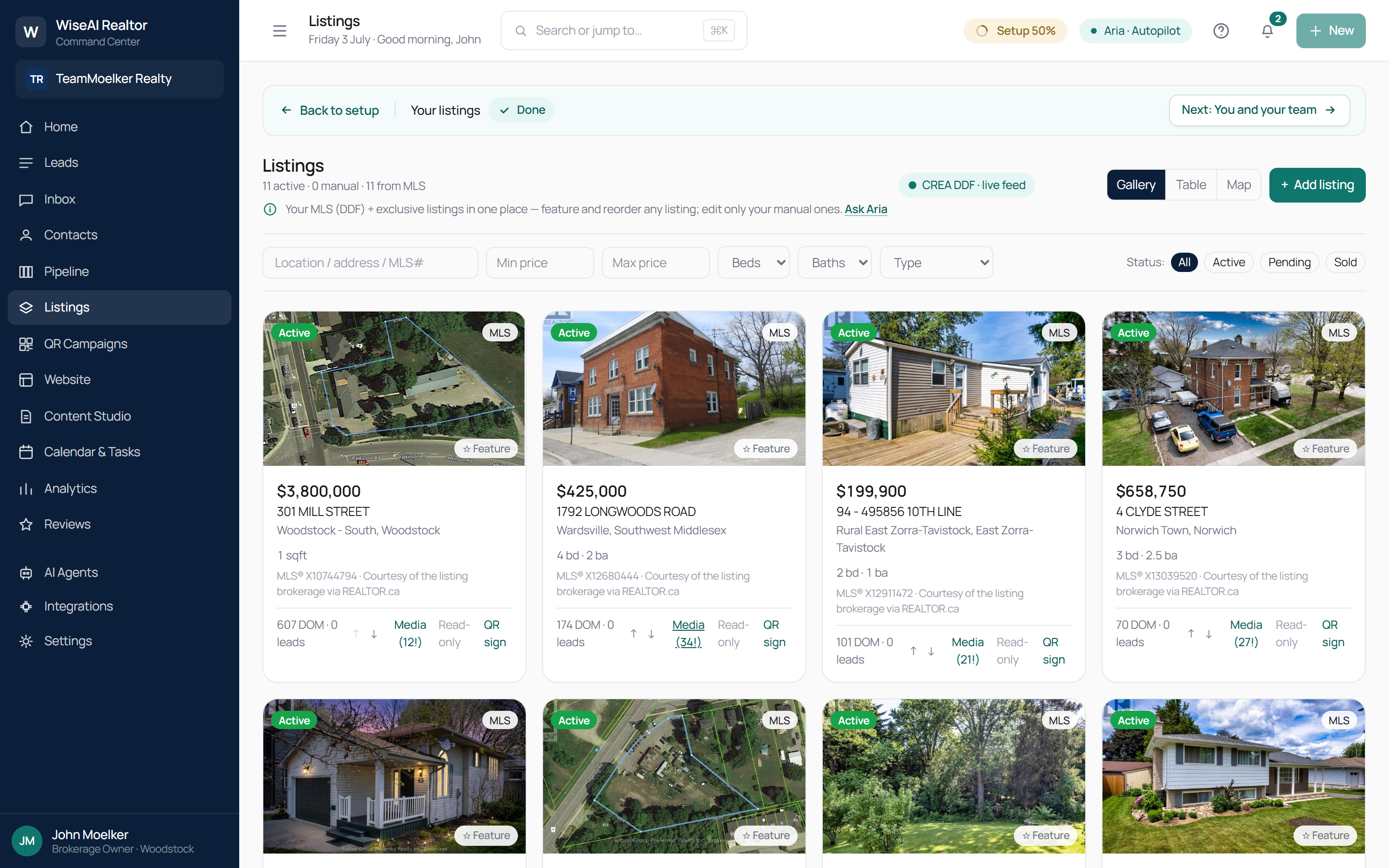
What it is: all your listings in one place — your MLS listings (via the CREA DDF live feed) and your own manual/exclusive listings — with Gallery, Table and Map views and a full search/filter bar (location, price, beds, baths, type, status).
Day to day:
- DDF/MLS listings sync automatically and are read-only (we can't edit the board's record). Each card shows price, address, MLS#, "Courtesy of the listing brokerage via REALTOR.ca," days-on-market, lead count, media count, and a QR sign shortcut.
- Manual listings are your exclusives and coming-soon properties — use Add listing to create one; these are fully editable and live on your own site only (not REALTOR.ca). Delete removes one for good (after a confirm). A listing still linked to a deal, QR campaign or showing can't be deleted — mark it Sold or untick "Show on my public website" instead. The Coming soon status chip filters to just those.
- Feature and reorder work on all listings, so your best inventory sits up top. Alt-text on photos is required (accessibility).
Train the Becketts: this is where their 11 real Sutton DDF listings already appear with photos and stats — proof of parity with what they have today, plus the per-listing QR sign → live AI chat they don't have.
QR Campaigns — /realtor/app/qr-campaigns
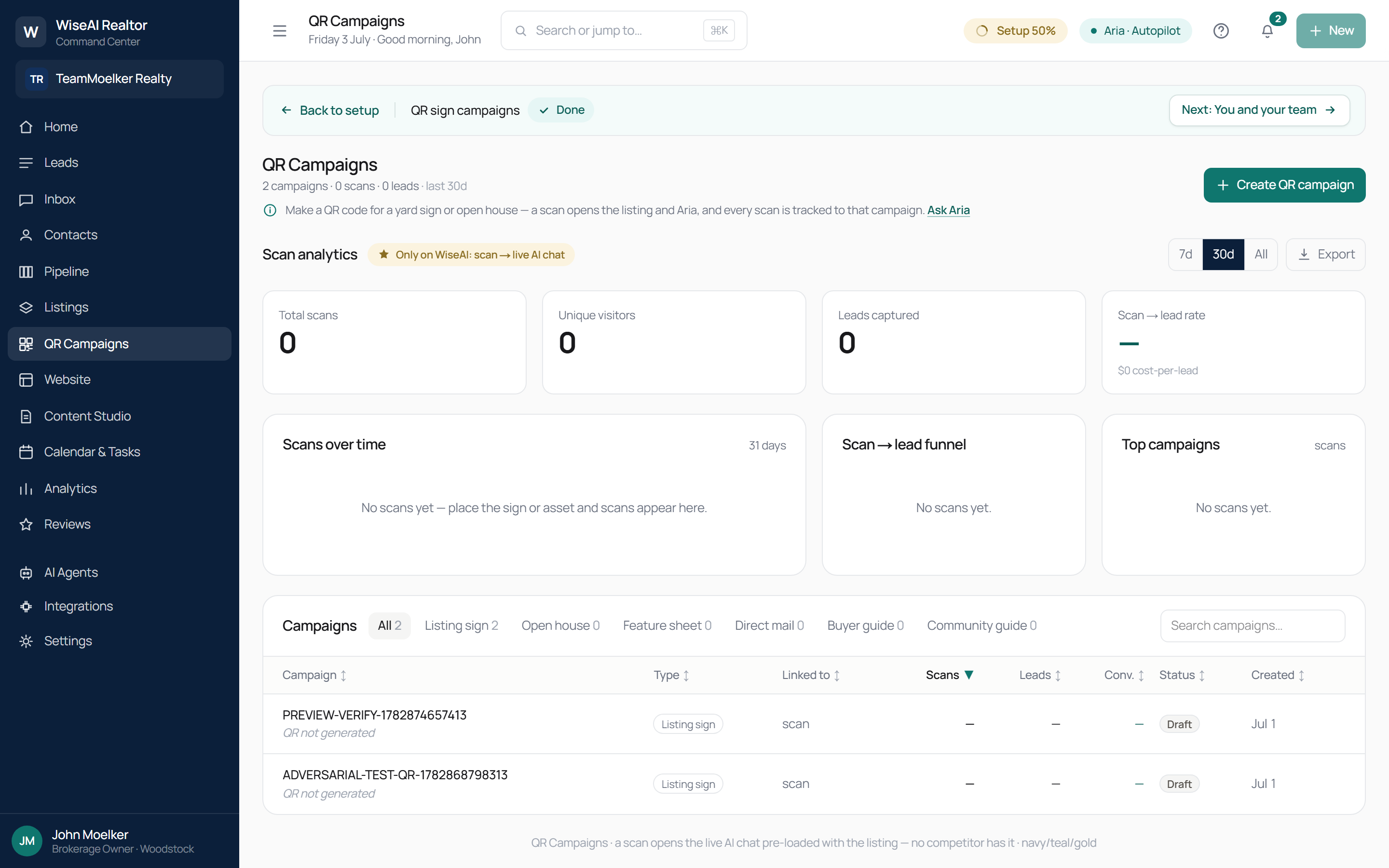
What it is: QR codes for your yard signs and open houses, plus scan analytics.
Day to day:
- Create QR campaign, link it to a listing, and print the code on your rider or handout (campaign types: listing sign, open house, feature sheet, direct mail, buyer guide, community guide).
- A scan opens the listing and a live chat with Aria — and is tracked to that campaign.
- Watch scans, unique visitors, leads captured, and scan-to-lead rate per campaign over 7d / 30d / All; export CSV.
Train the Becketts: headline differentiator — "a scan opens the live AI chat pre-loaded with the listing — no competitor has it." Their current provider's QR is a static link.
Website builder — /realtor/app/website
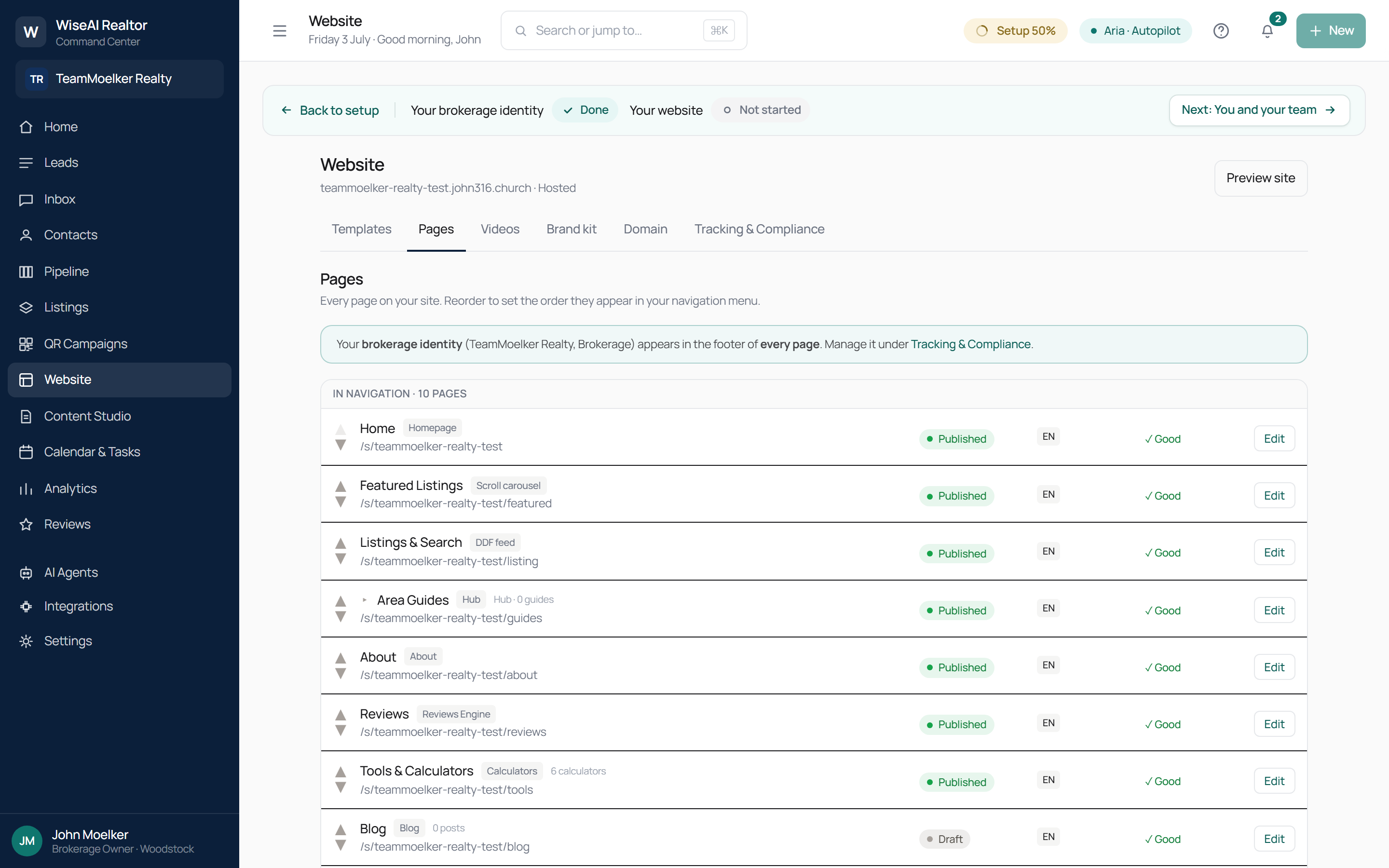
What it is: your public site. Tabs: Templates, Pages, Videos, Brand kit, Domain, Tracking & Compliance.
Day to day: set your look and content per tab, then Publish; use Preview site any time. Pages can be reordered to set nav order and each shows a Published/Draft status, language, and a quality check. The Videos tab is the curated video slider (YouTube/Vimeo). Your brokerage identity (legal name, registration, office, registered agents) lives under Tracking & Compliance and appears in the footer of every page — it must be complete before the site can go live (your regulator requires it).
Train the Becketts: the site is already scaffolded (Home, Featured Listings, Listings & Search, Area Guides, About, Reviews, Tools & Calculators, Blog…). The Videos tab closes the one gap their current site had over ours.
Content Studio — /realtor/app/studio
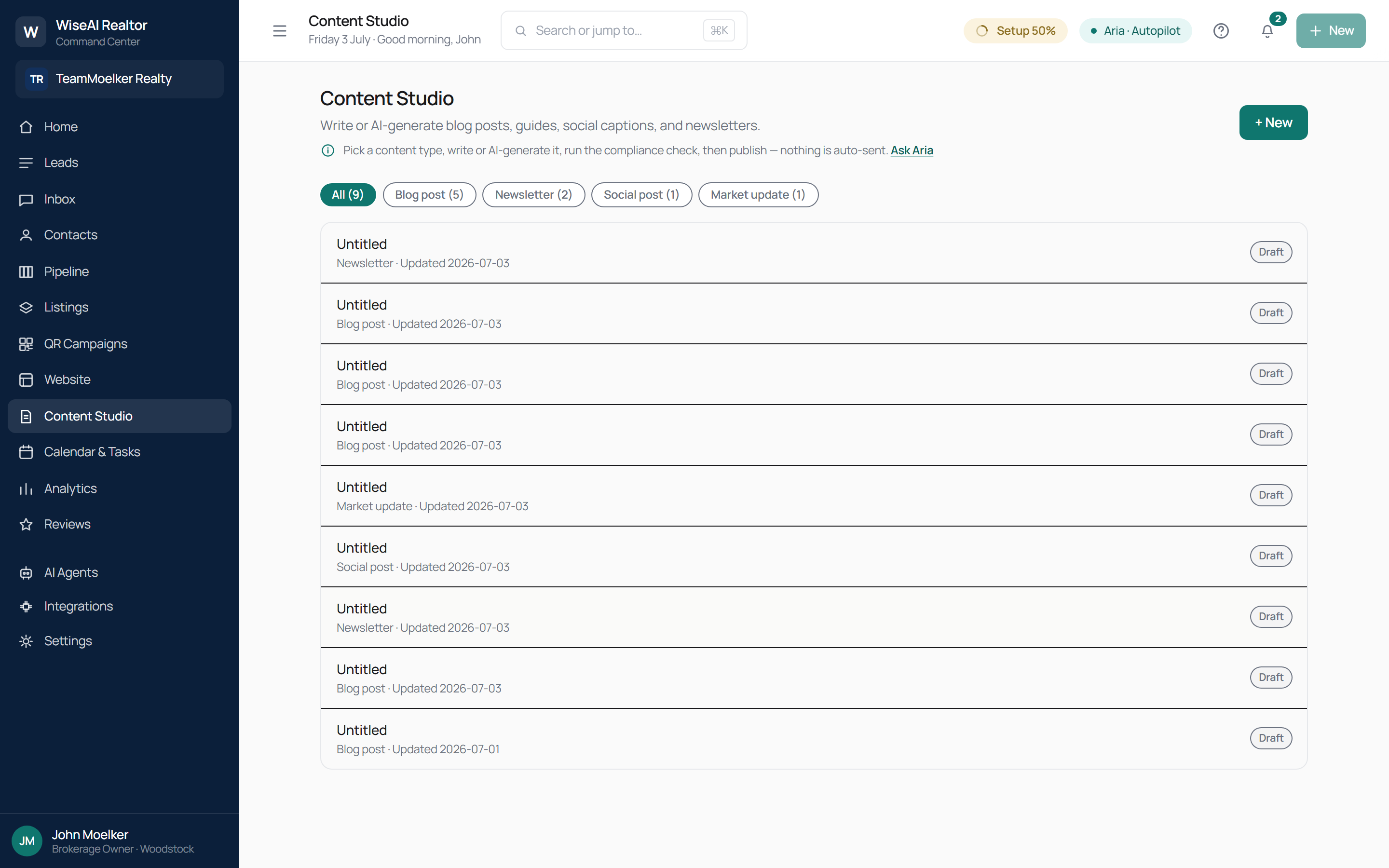
What it is: an AI-assisted editor for your marketing content, with a library of drafts filtered by type (Blog post, Newsletter, Social post, Market update, plus buyer/seller/neighbourhood guides).
Day to day:
- Press + New and pick a type.
- Write it yourself or AI-generate a draft, then rewrite as needed.
- Run the compliance check (fair-housing), then Publish.
Publishing a blog puts it on your website; for social/newsletter, publishing just marks it Ready — nothing is auto-sent.
Calendar & Tasks — /realtor/app/calendar
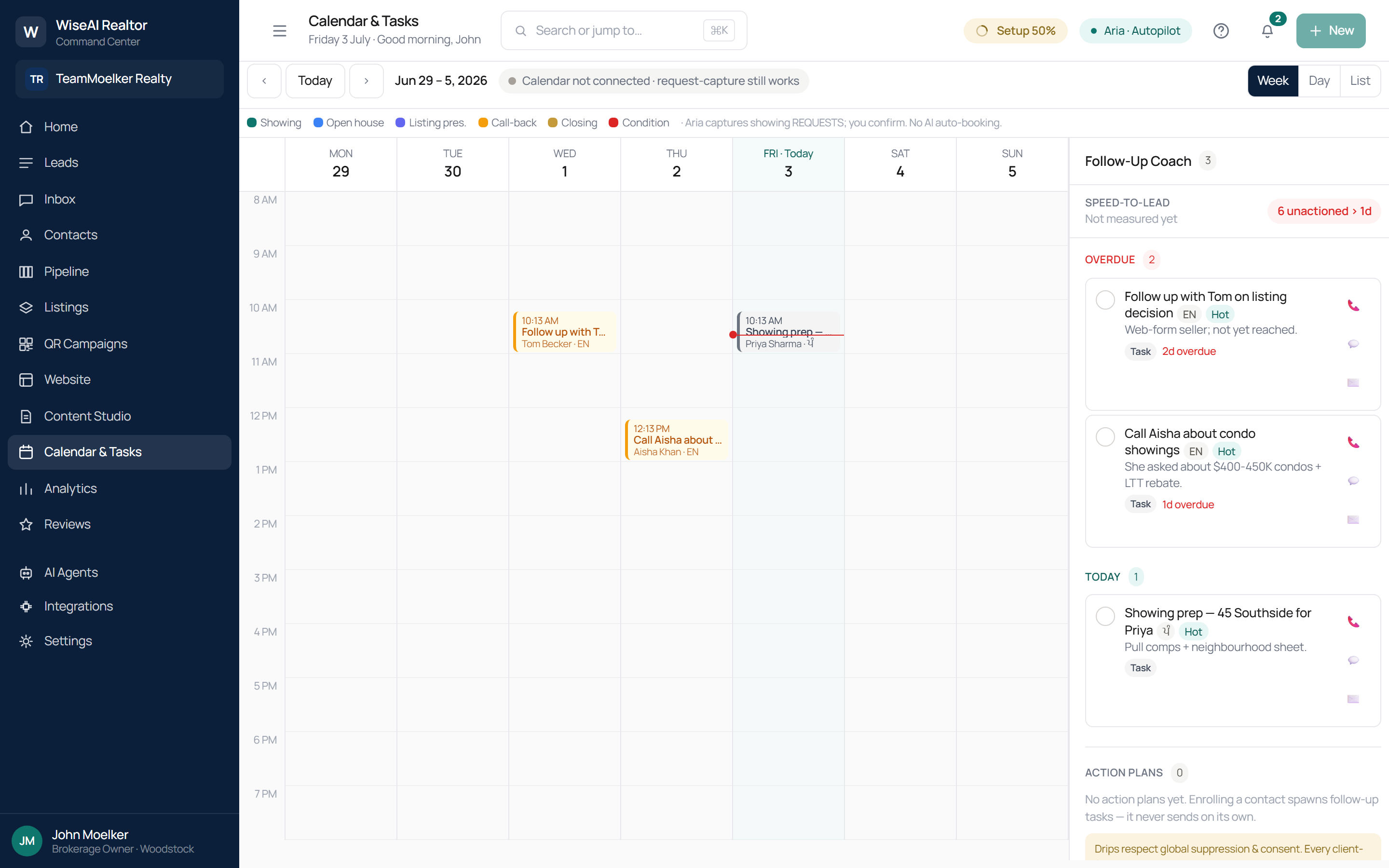
What it is: your showings, follow-ups, and to-dos in one place, tied to leads and deals so nothing slips.
Day to day: work the day's tasks and upcoming showings; items Aria creates (follow-up due, confirm appointment) surface here alongside anything you add.
Analytics — /realtor/app/analytics
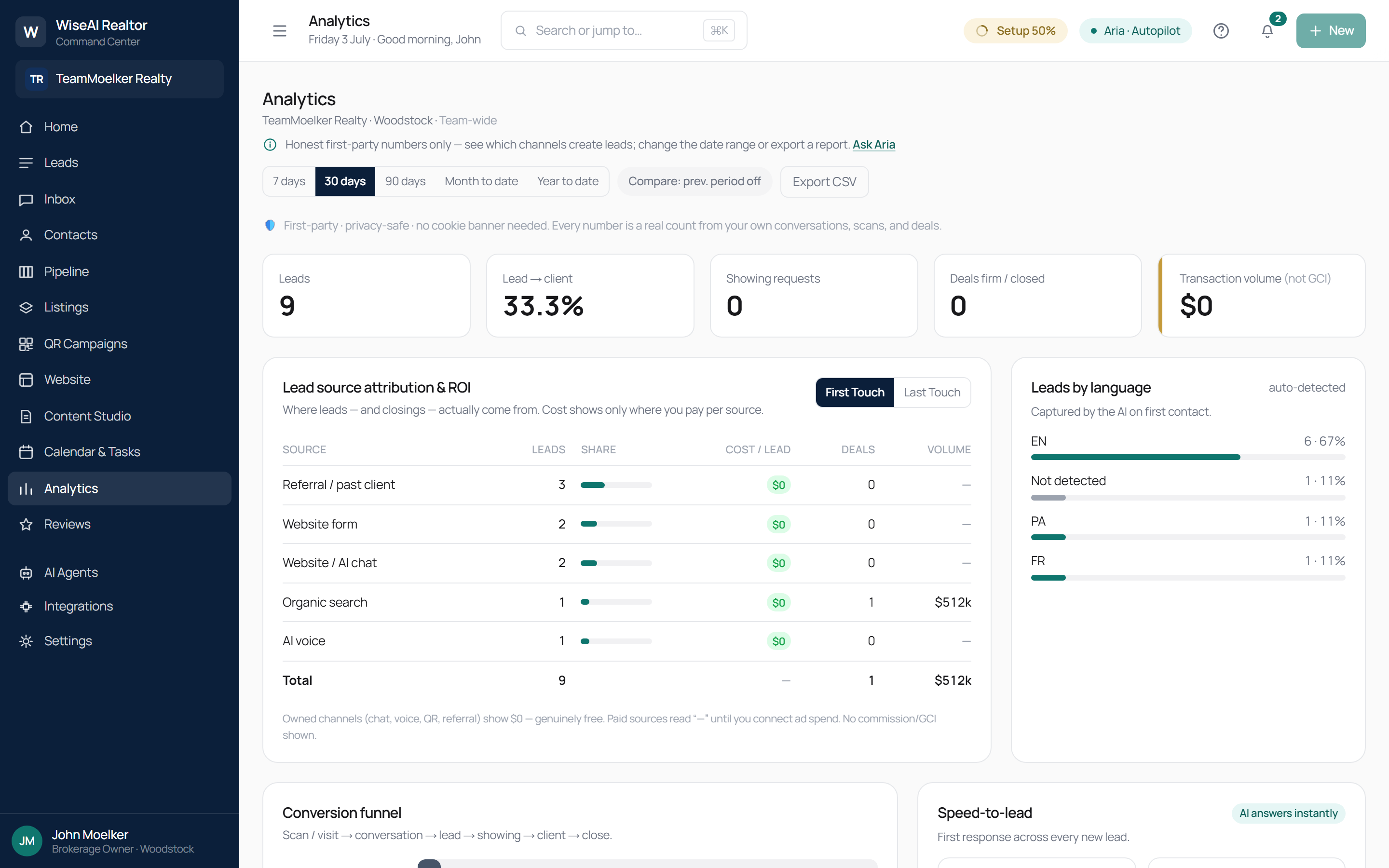
What it is: honest, first-party reporting — "no cookie banner needed. Every number is a real count from your own conversations, scans, and deals."
Day to day: read the KPI strip (leads, lead→client %, showing requests, deals firm/closed, transaction volume — never GCI), then the reports: lead-source attribution & ROI (first-touch/last-touch, cost-per-lead, deals, volume), leads by language, conversion funnel, and speed-to-lead. Change the date range, toggle compare-to-previous, and export CSV. Empty periods say "no data" rather than inventing a number.
Train the Becketts: "Leads by language" (EN/FR/PA) and owned channels reading a genuine $0 cost-per-lead are the two slides that sell the whole system — honest numbers their current Facebook-Pixel setup can't produce.
Reviews & Testimonials — /realtor/app/reviews
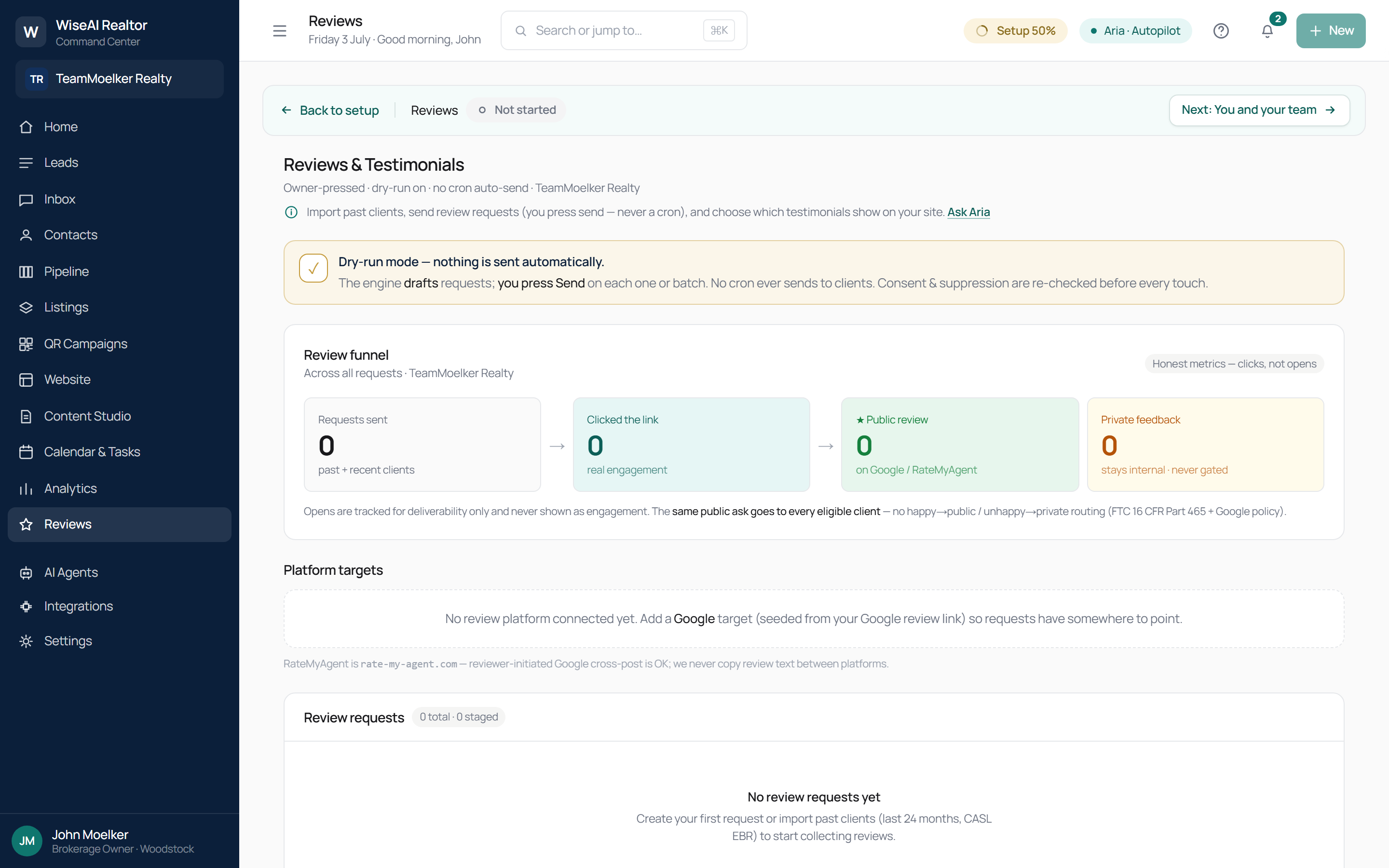
What it is: your review-request funnel and testimonial manager (built over the Reviews Engine). Banner: "Owner-pressed · dry-run on · no cron auto-send."
Day to day:
- Import your past-client list (last 24 months, CASL existing-business- relationship).
- Create review requests — you press Send on each one or batch; no cron ever sends. Emails carry the required unsubscribe + mailing address (CASL).
- Curate which testimonials show on your site — a testimonial only goes public with the client's consent, your registrant ID, and the required disclosure.
There is no happy→public / unhappy→private gating — the same honest ask goes to everyone (FTC 16 CFR Part 465 + Google policy). Metrics are clicks, not opens.
AI Agents (Aria) — /realtor/app/settings/agents
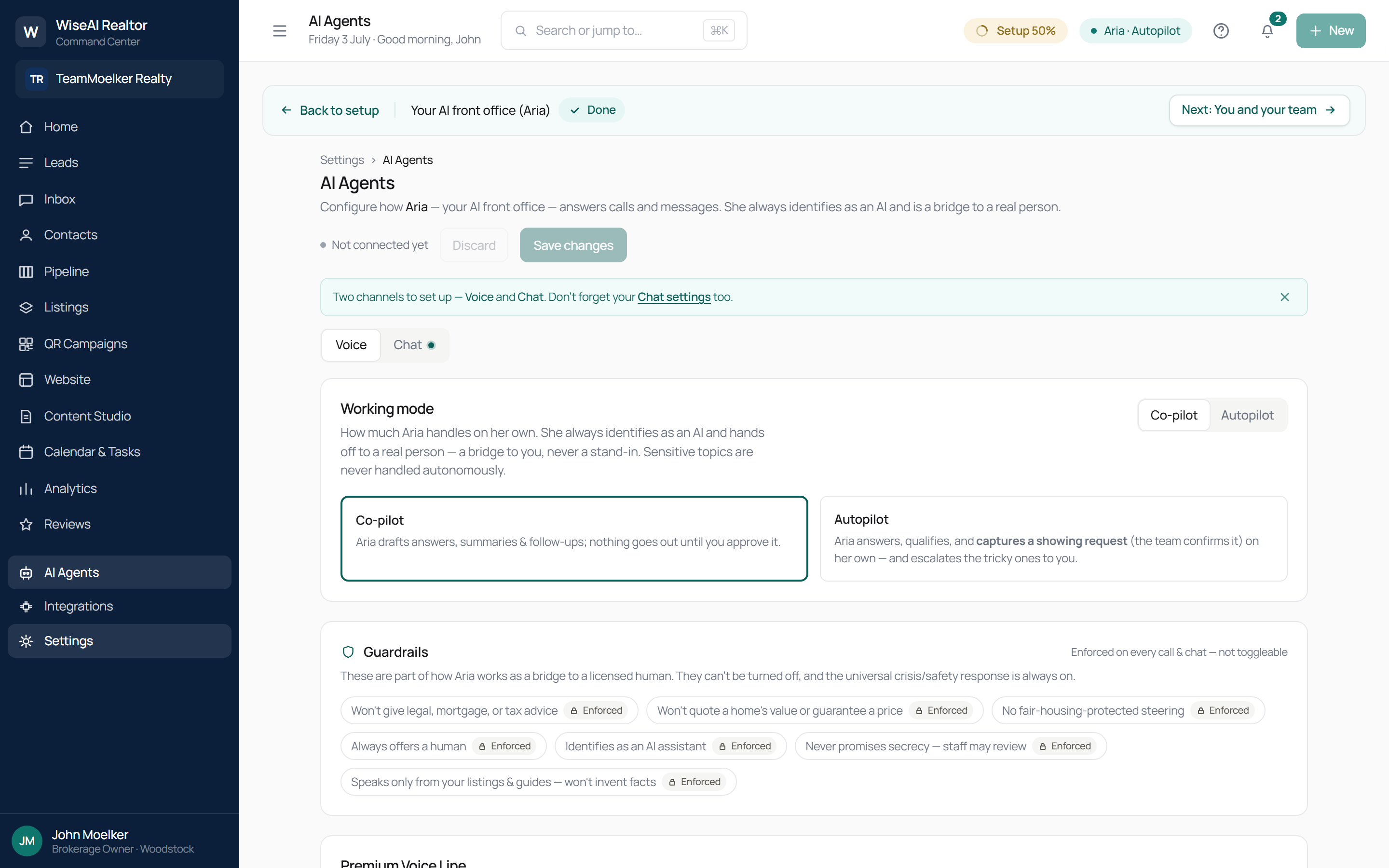
What it is: where you configure your AI front office. Two channels — Voice and Chat — each with a Working mode (Co-pilot: Aria drafts, you approve / Autopilot: Aria answers, qualifies, captures a showing request, escalates the tricky ones).
The guardrails are locked on and cannot be switched off — visible on this screen as Enforced chips: won't give legal/mortgage/tax advice · won't quote a home's value or guarantee a price · no fair-housing-protected steering · always offers a human · identifies as an AI assistant · never promises secrecy (staff may review) · speaks only from your listings & guides (won't invent facts). The universal crisis/safety response is always on.
Train the Becketts: this screen IS the trust conversation. Every guardrail is shown as Enforced, not a toggle — Aria is a bridge to a licensed human, never a stand-in. This is what makes an AI answering their phone safe.
Settings → Your team — /realtor/app/settings/team
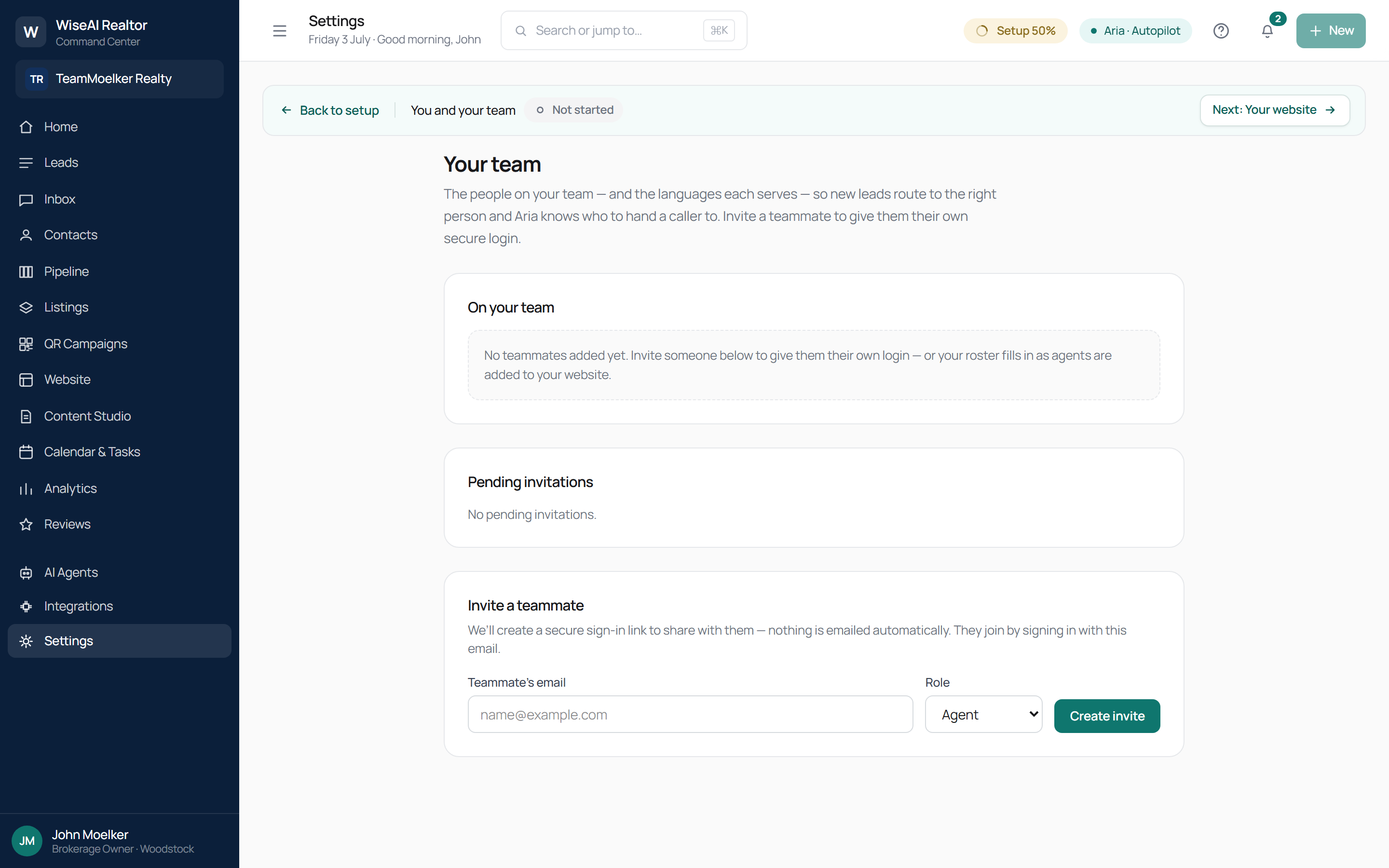
What it is: the people on your team — and the languages each serves — so new leads route to the right person and Aria knows who to hand a caller to. This is where Terry and Sheri each get their own secure login.
Day to day: see who's on your team and any pending invitations. To add someone, Invite a teammate: enter their email + role (Agent, etc.) → Create invite generates a secure sign-in link to share (nothing is emailed automatically; they join by signing in with that email).
Train the Becketts: invite Sheri here so she has her own identity — her leads, her attribution, her language routing — separate from Terry's, exactly as the two-agent team should work.
Lead alerts — /realtor/app/settings/notifications
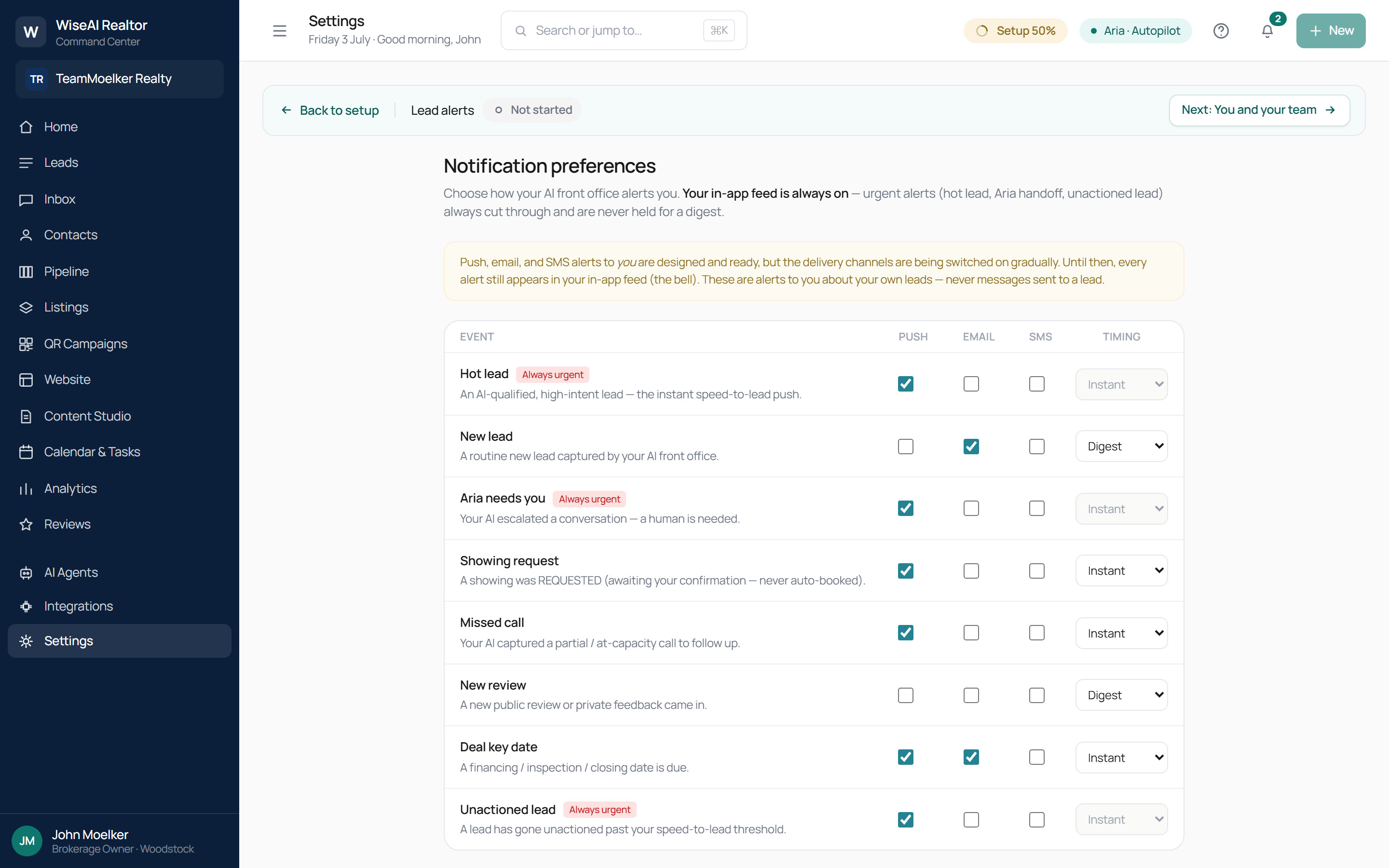
What it is: how you hear about new leads.
Day to day: turn on an instant push for hot leads (so they interrupt you) and a once-a-day email digest for routine ones. Speed-to-lead wins deals.
Integrations — /realtor/app/integrations
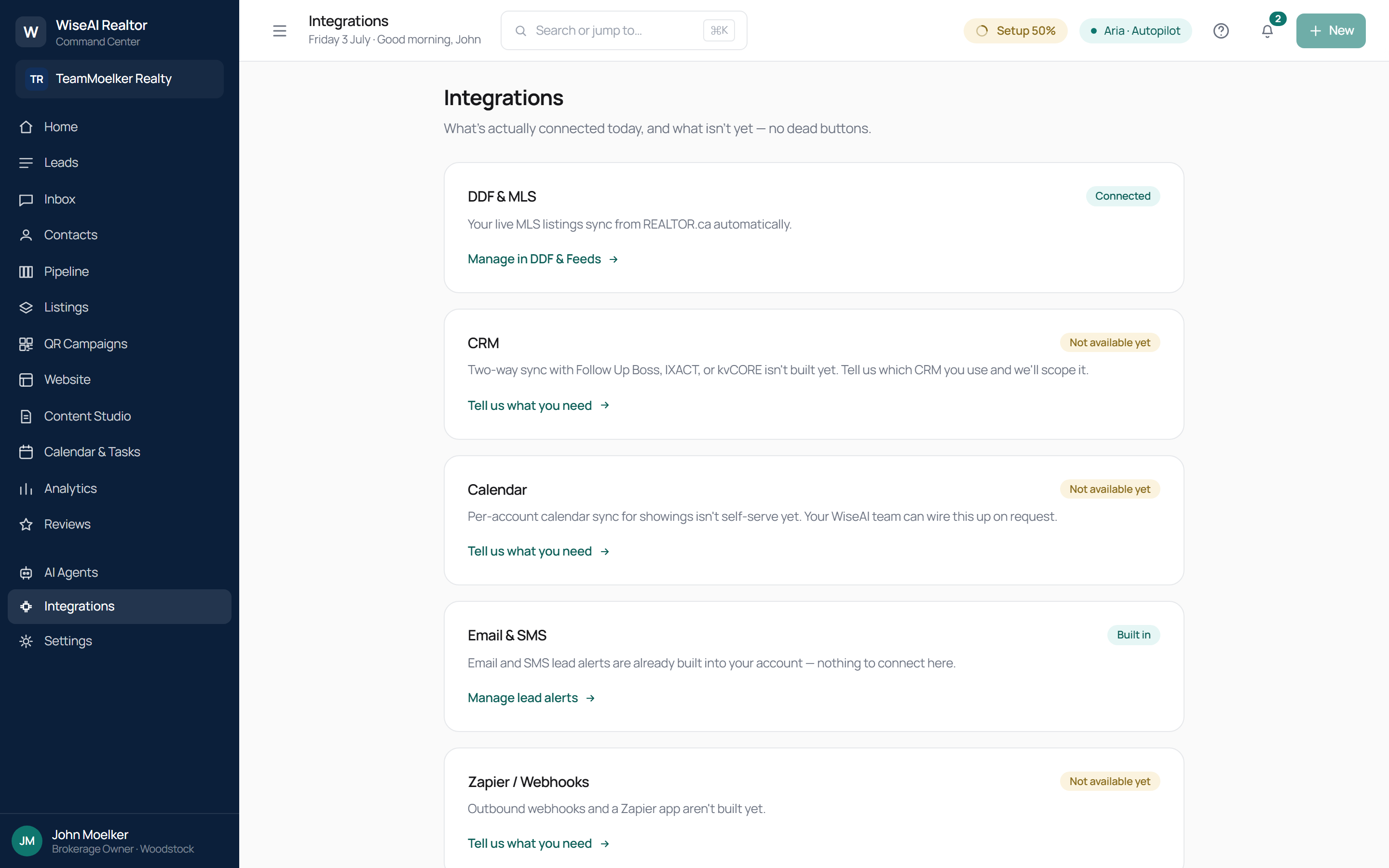
What it is: an honest status hub — what's connected and what isn't.
Day to day: your DDF/MLS feed and email & SMS are built in. CRM, calendar sync, Zapier/webhooks and API keys are marked "not available yet" with a "tell us what you need" link. No dead buttons.
Setup wizard — /realtor/app/setup
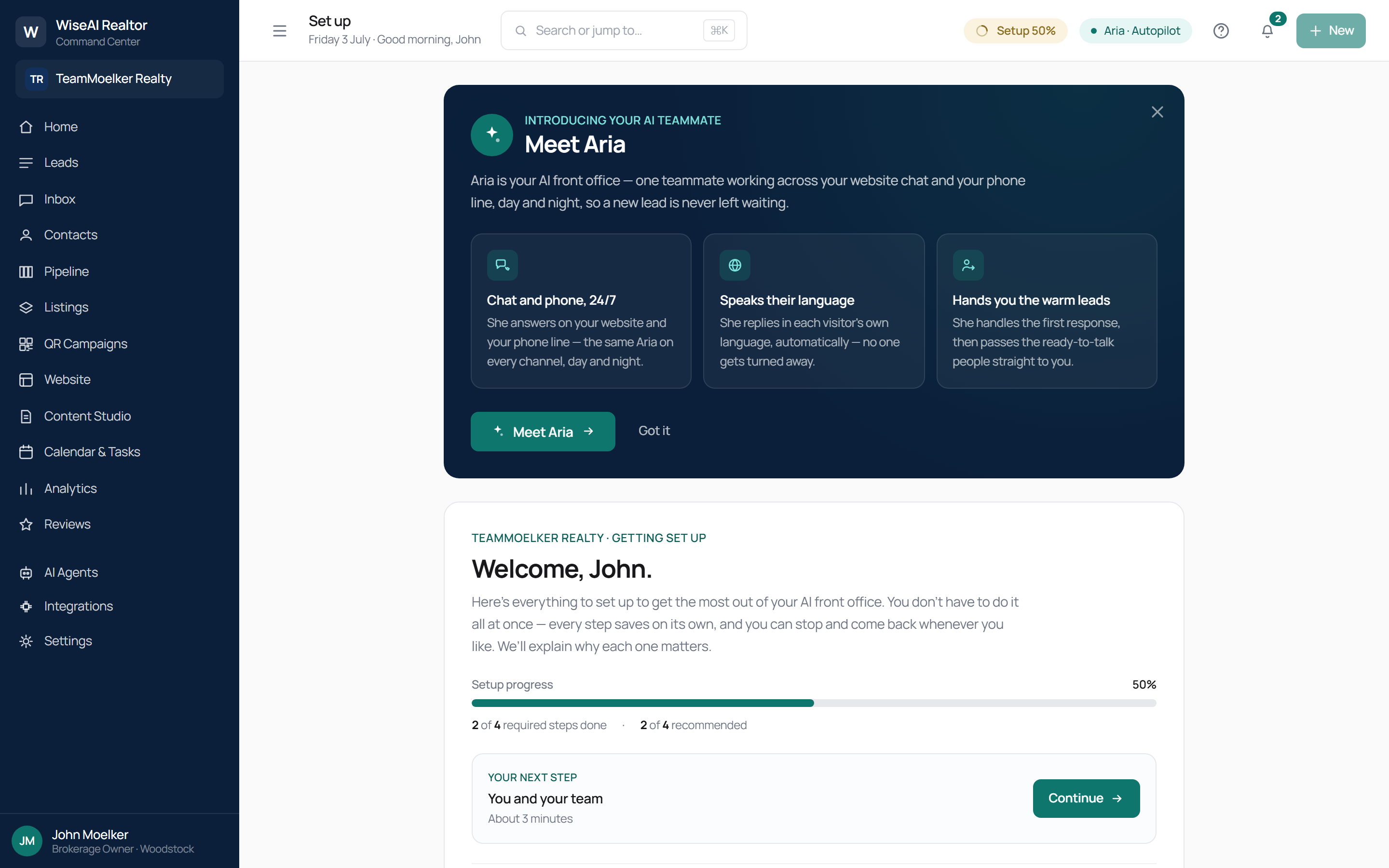
What it is: the guided onboarding checklist (the Continue setup button on Home lands here). It steps through the required pieces — your AI front office (Aria), your listings, you and your team, and your website/compliance identity — explaining why each matters, and everything saves so you can return any time.
Day to day: work top to bottom; the Home banner shows the percentage complete. Required steps gate go-live (e.g. brokerage identity must be complete before the site can publish).
Sub-screens — where the "wow" lands in a demo
These three views aren't in the left nav — you reach them by clicking into a lead, a conversation, or a listing. They're the moments that sell the system, so lead with them when you sit with Terry and Sheri.
Lead detail drawer (click any lead)
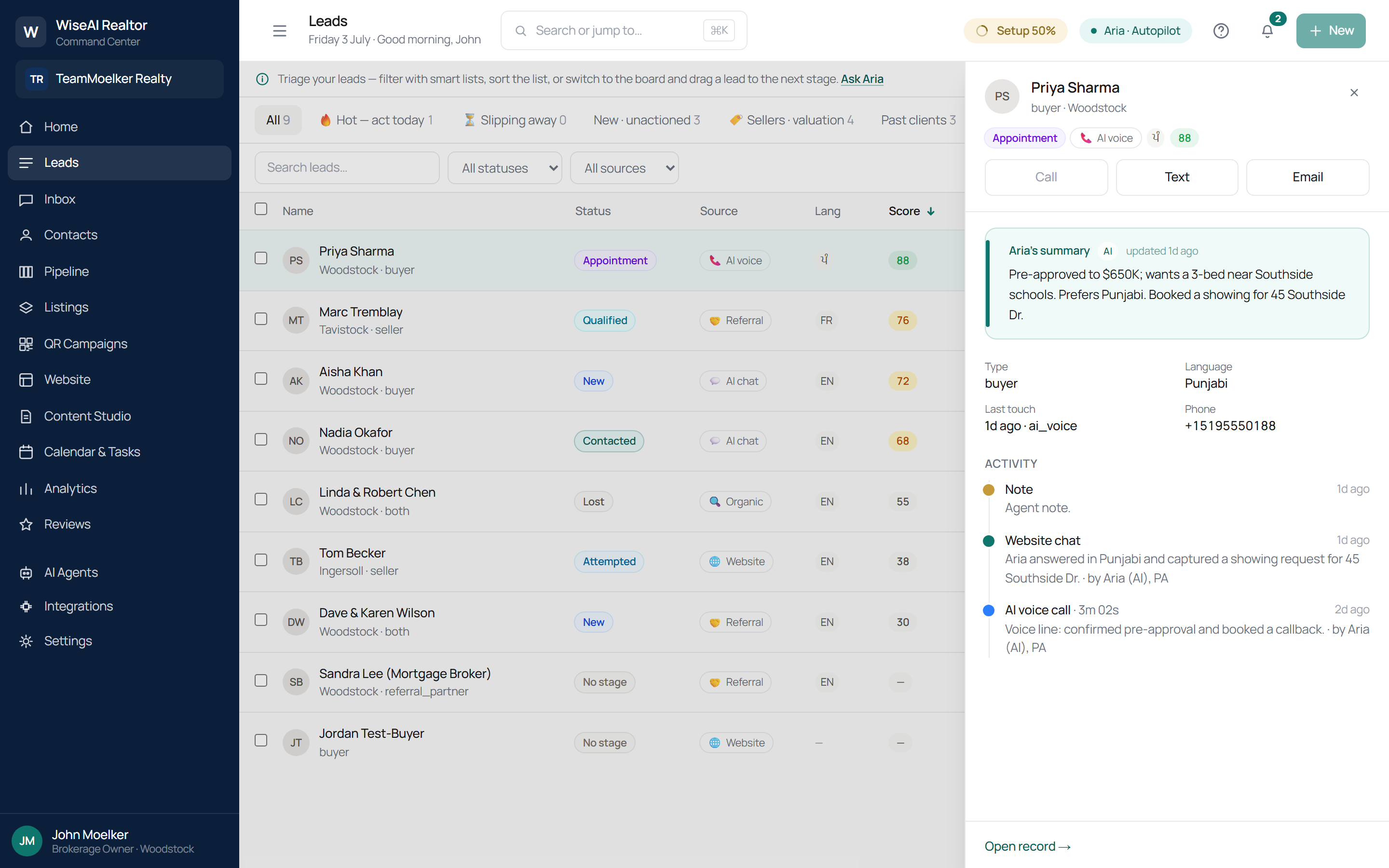
Click a lead to open its drawer: Call/Text/Email, Aria's AI summary, type, language, phone, and a full activity timeline. In this showcase example Aria handled a Punjabi buyer end-to-end — "Pre-approved to $650K; wants a 3-bed near Southside schools. Prefers Punjabi. Booked a showing for 45 Southside Dr." — with the timeline showing a 3m 02s Punjabi AI voice call ("confirmed pre-approval and booked a callback · by Aria (AI), PA") and a website chat, both in Punjabi.
Train the Becketts: this single screen is the multilingual pitch made real — Aria answered a caller in Punjabi, qualified them, and booked the showing, and here's the receipt. No competitor in Oxford County can show this.
Inbox conversation — Aria escalates the tricky one
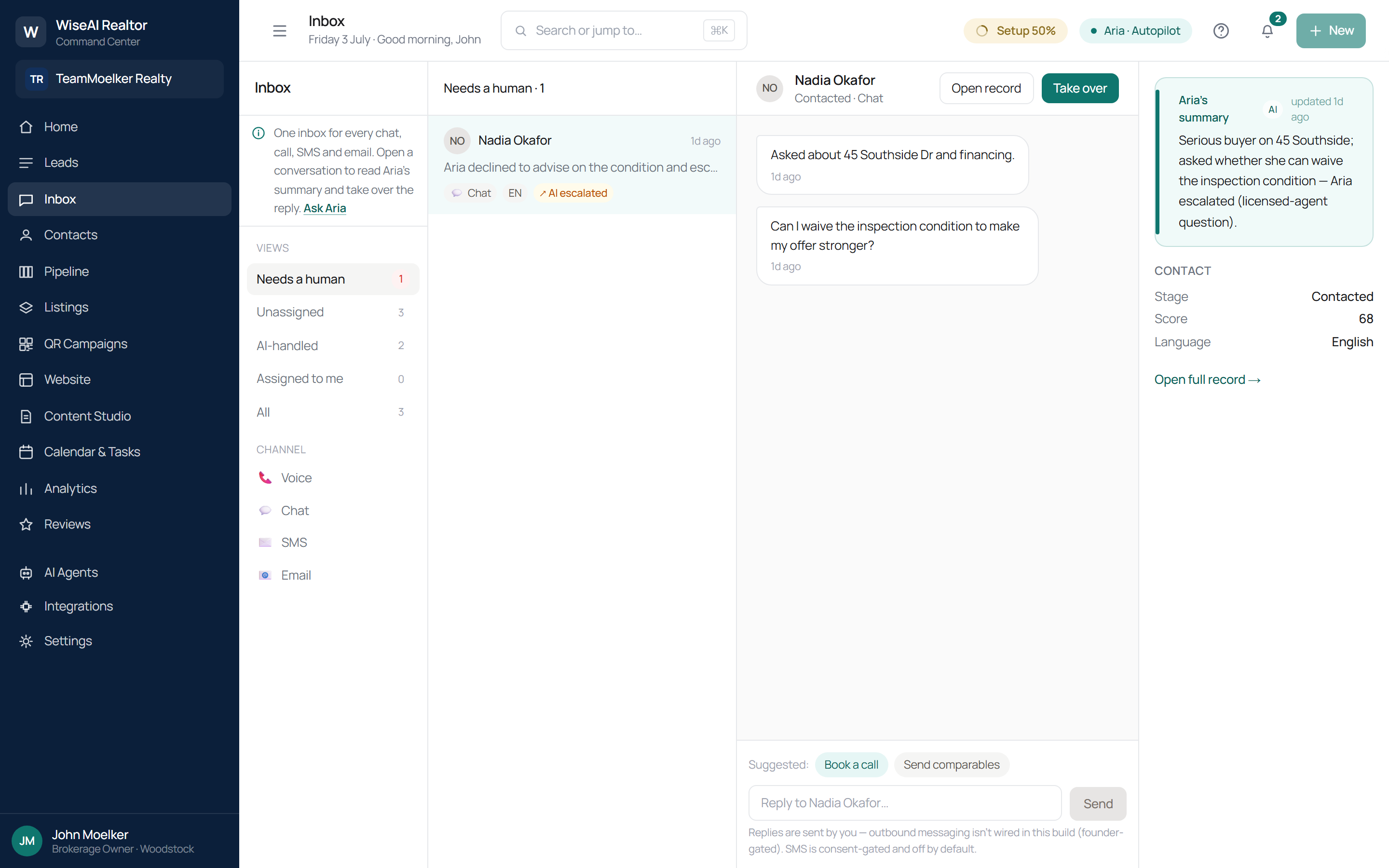
Open a conversation to read the full thread, Aria's summary, the contact snapshot, and a reply box with Suggested next actions ("Book a call," "Send comparables") and a Take over button. Here the buyer asked "Can I waive the inspection condition to make my offer stronger?" — a licensed-agent judgment call — and Aria's summary reads "escalated (licensed-agent question)."
Train the Becketts: this is the guardrail working in the wild. Aria didn't guess at a legal/contractual question — she handed it to a human. That restraint is exactly what makes an AI on their phone safe, and it's on screen.
Public listing detail — what a buyer sees
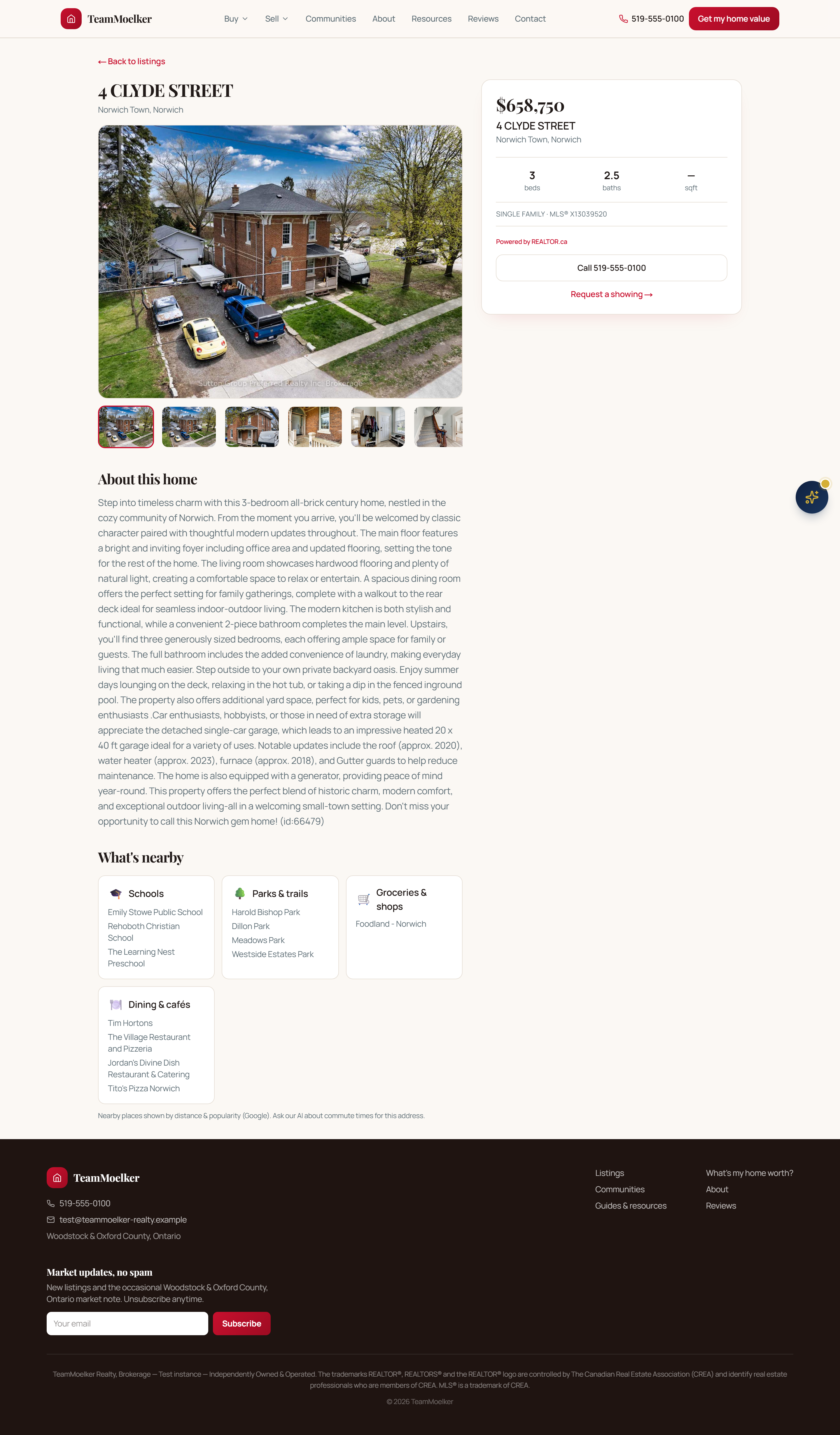
Every listing has a rich public page (branded in the team's colours): photo gallery, price/beds/baths, full "About this home" description, a What's nearby panel (schools, parks, groceries, dining), Request-a-showing, and the AI chat launcher in the corner. This is where a QR scan or a Google visitor lands.
Train the Becketts: this matches — and in places beats — the detail depth of their current site, and every visitor can open a live AI chat about this property right from the page. Pair it with the QR-sign story.
Getting help anywhere
- Ask Aria — the hint on each screen, or the ? in the top bar, opens Aria. On a working screen she answers "how do I use X", explains what the screen does, and points you to the exact control.
- What Aria won't do: she won't change a setting, send a message, or move a deal for you — she guides, you act. And she never gives a valuation, legal/mortgage/tax advice, or characterizes who lives in an area — those go to a licensed human.
Illustrated 2026-07-03 from the TeamMoelker Realty showcase account. To
re-capture after UI changes, re-run the Playwright capture that produced
operator-guide-assets/*.png (see the session handoff). Verify screenshots
against the live app before training if the dashboard has changed since.